
SoundTeG Ambisonic Decoder
SoundTeG Ambisonic Decoder is a plug-in for Wwise that converts an ambisonic input into speaker feeds for a configurable loudspeaker layout. Choose a decoding method, set the speaker positions, and use RTPCs to control the decoder’s properties. The decoder works only on an Audio Bus with an Ambisonics bus configuration. It can run on that bus without physical loudspeakers connected.
On this page
- Setup guide
- 1. Install the plug-in
- 2. Create a project and import the presets
- 3. Create an ambisonic bus
- 4. Add SoundTeG Ambisonic Decoder
- 5. Configure the loudspeaker layout
- 6. Create and position a test sound
- 7. Route the sound to the ambisonic bus
- 8. Monitor the decoded output
- 9. Configure multichannel hardware output
- Plug-in properties
- RTPC setup
- Troubleshooting
- Demo: My World
Setup guide
Currently supported Wwise version: 2025.1.11.9262. The screenshots in this walkthrough were captured on Windows. Click any screenshot to open a larger view.
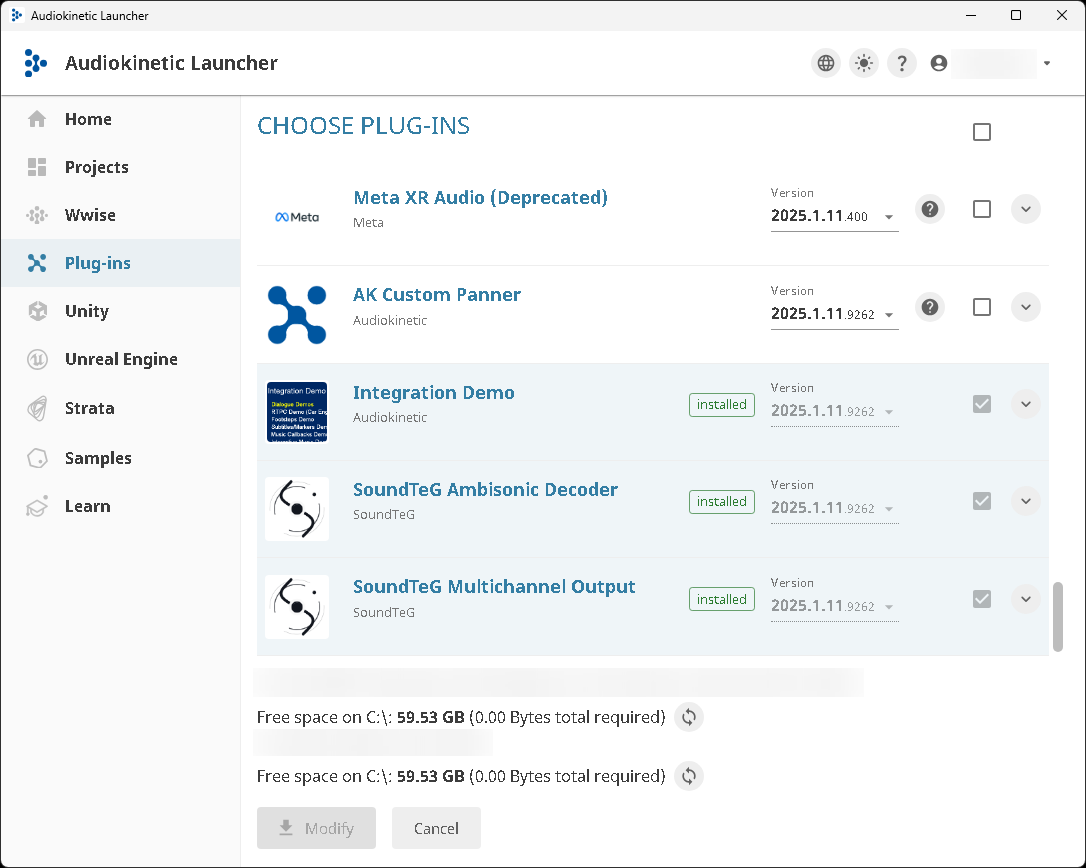
1. Install the plug-in
In the Wwise Launcher, install SoundTeG Ambisonic Decoder for the Wwise version you will use to open the project.
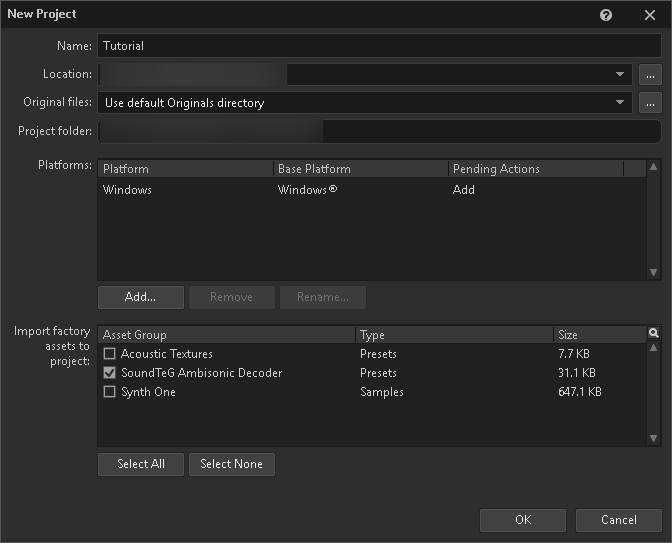
2. Create a project and import the presets
Create a new Wwise project. Under Import factory assets to project, select SoundTeG Ambisonic Decoder to include the loudspeaker-layout presets.
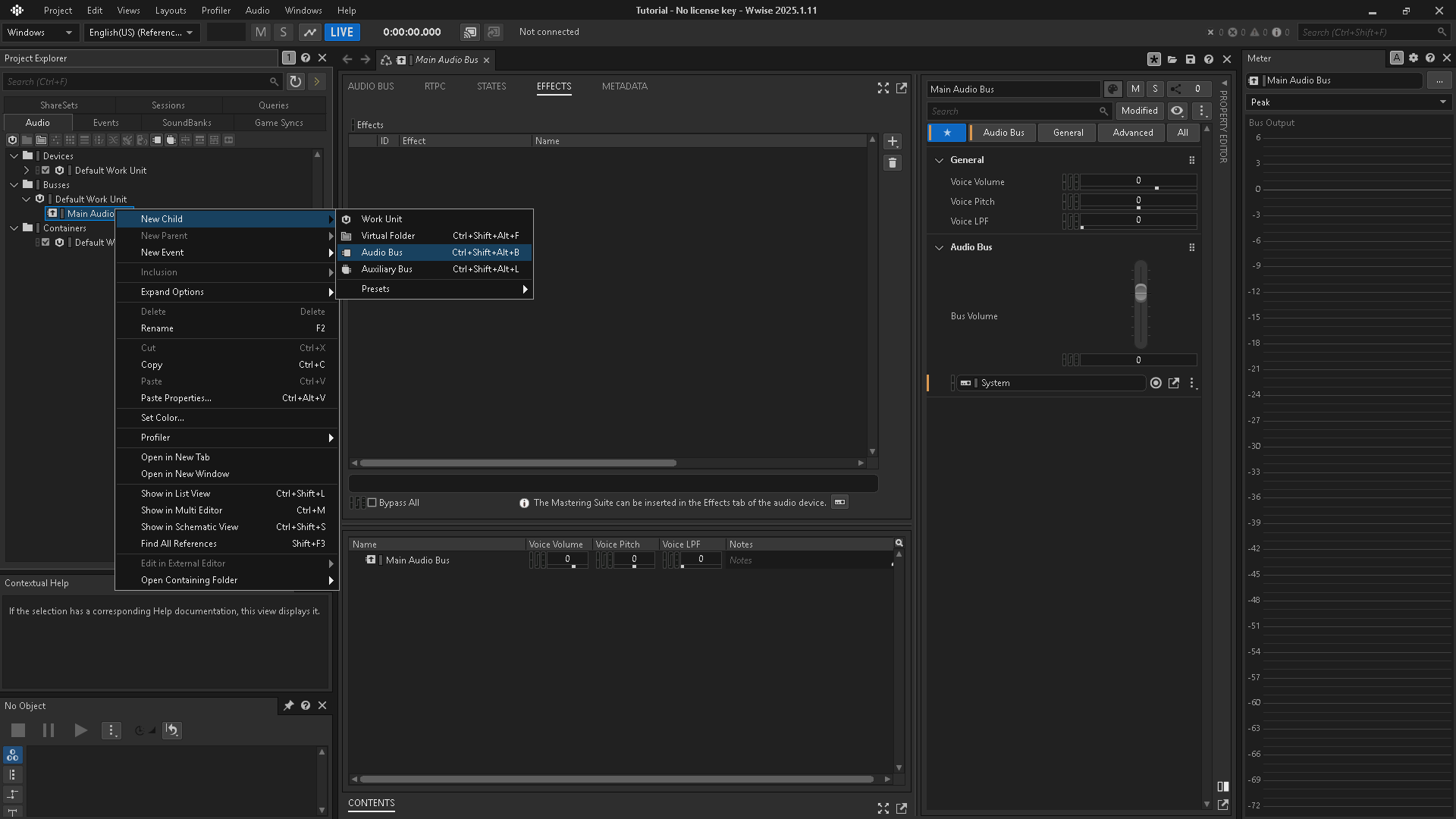
3. Create an ambisonic bus
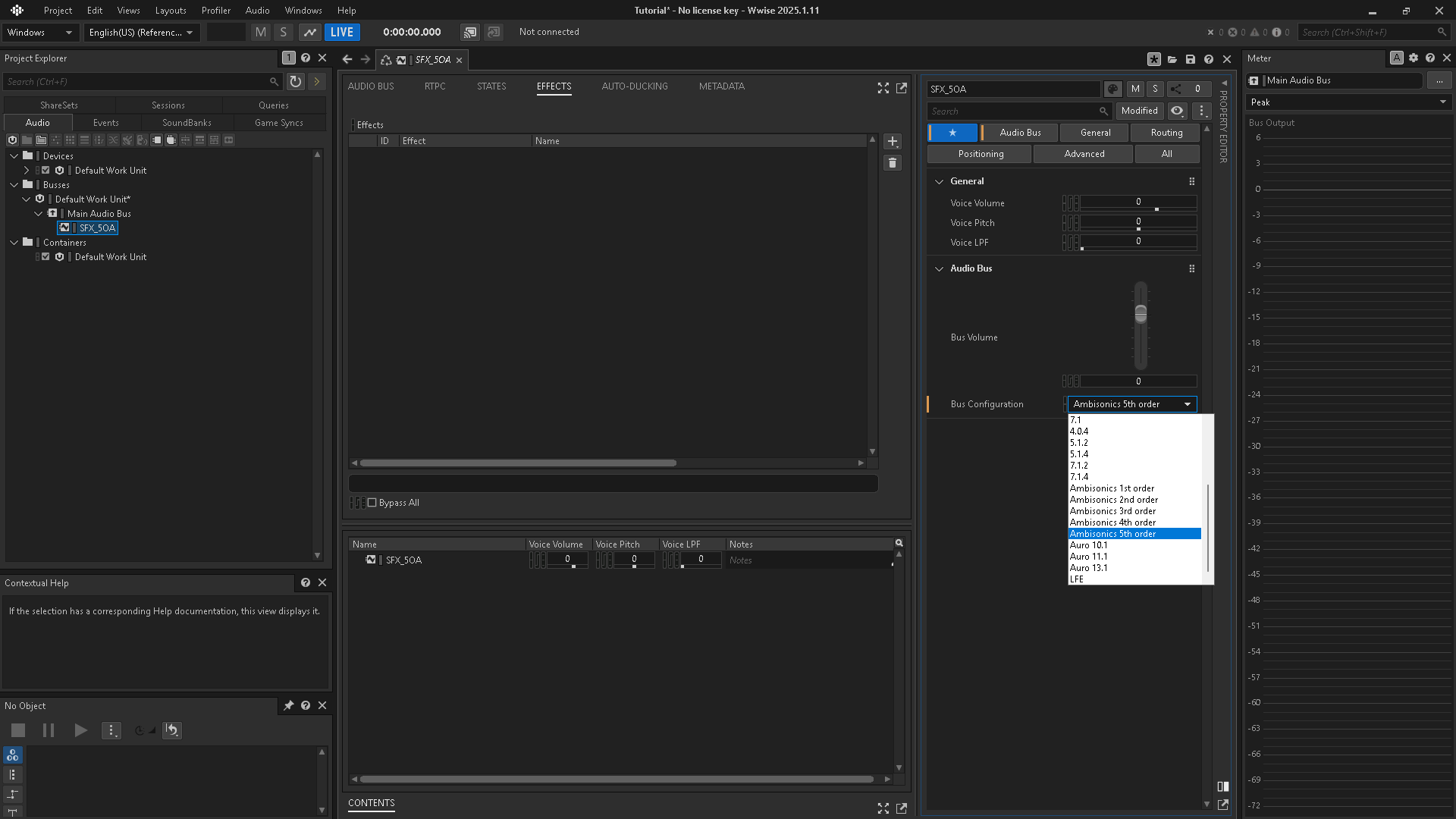
Under Main Audio Bus, create a child Audio Bus. The example names this bus SFX_SOA.
Set its Bus Configuration to the ambisonic order required by your project. The screenshot uses Ambisonics 5th order.
4. Add SoundTeG Ambisonic Decoder
Open the bus’s Effects tab and add SoundTeG Ambisonic Decoder.
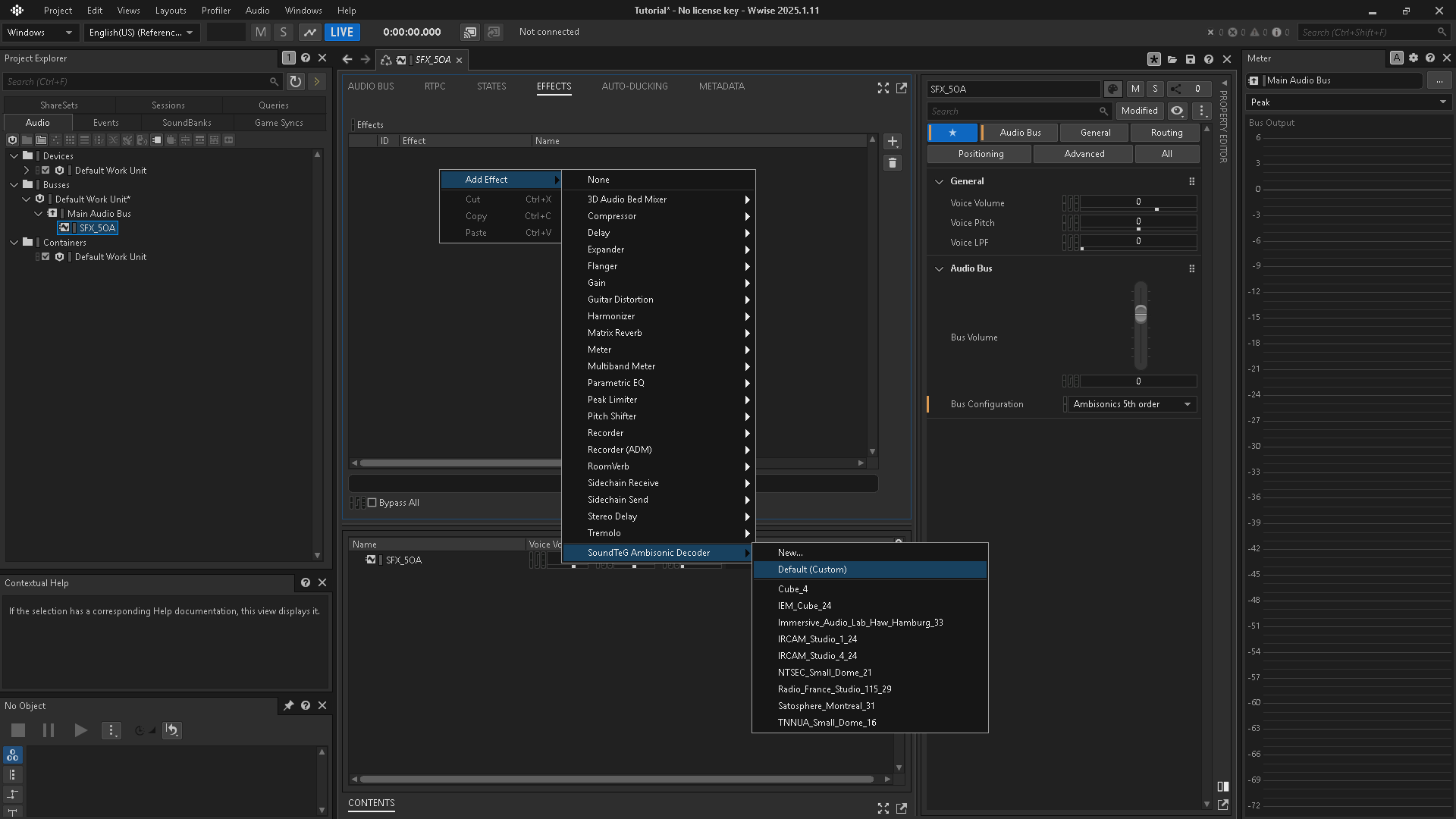
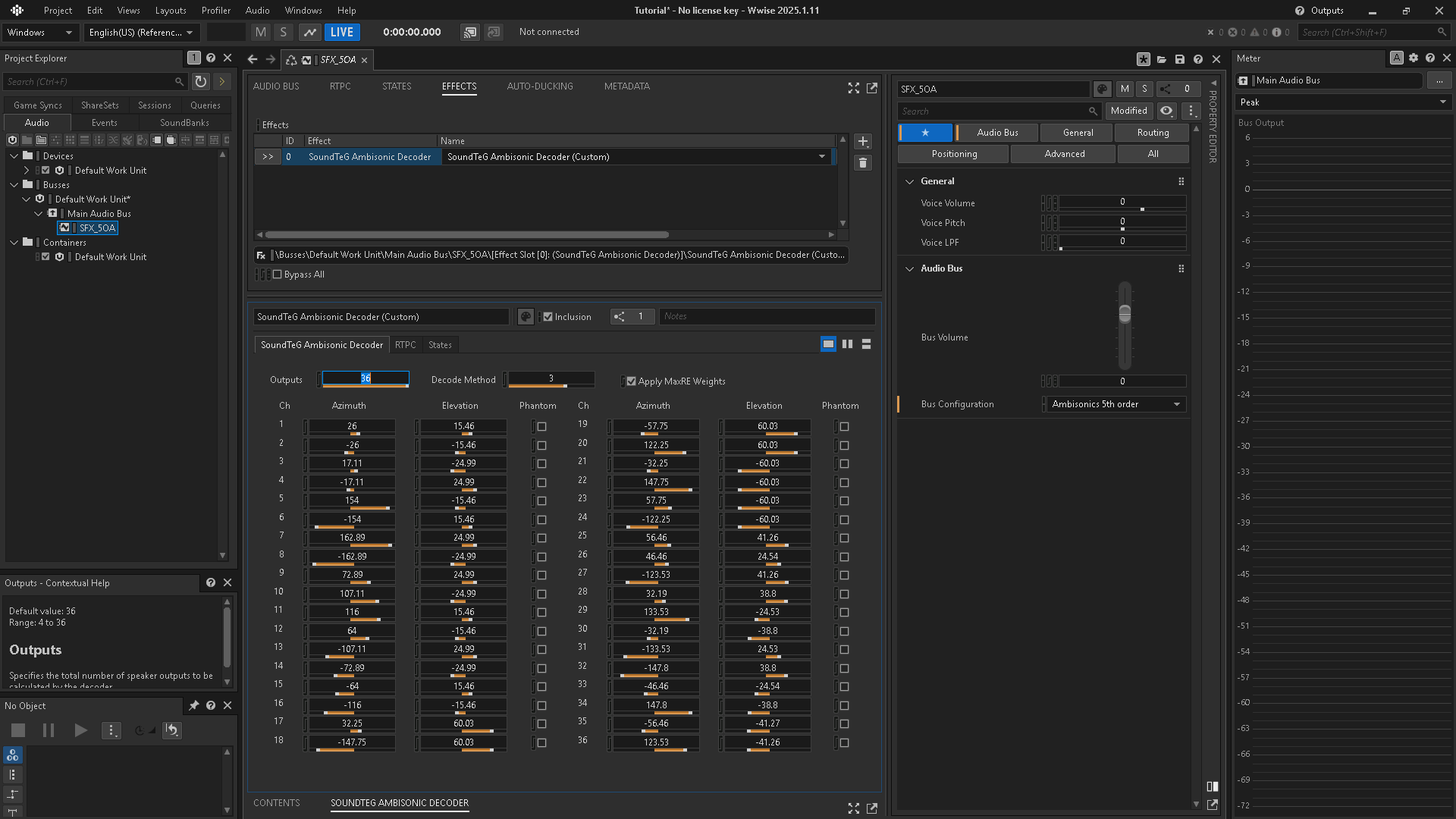
Open the effect to see its controls. Select a property to read its description in the Contextual Help panel.
5. Configure the loudspeaker layout
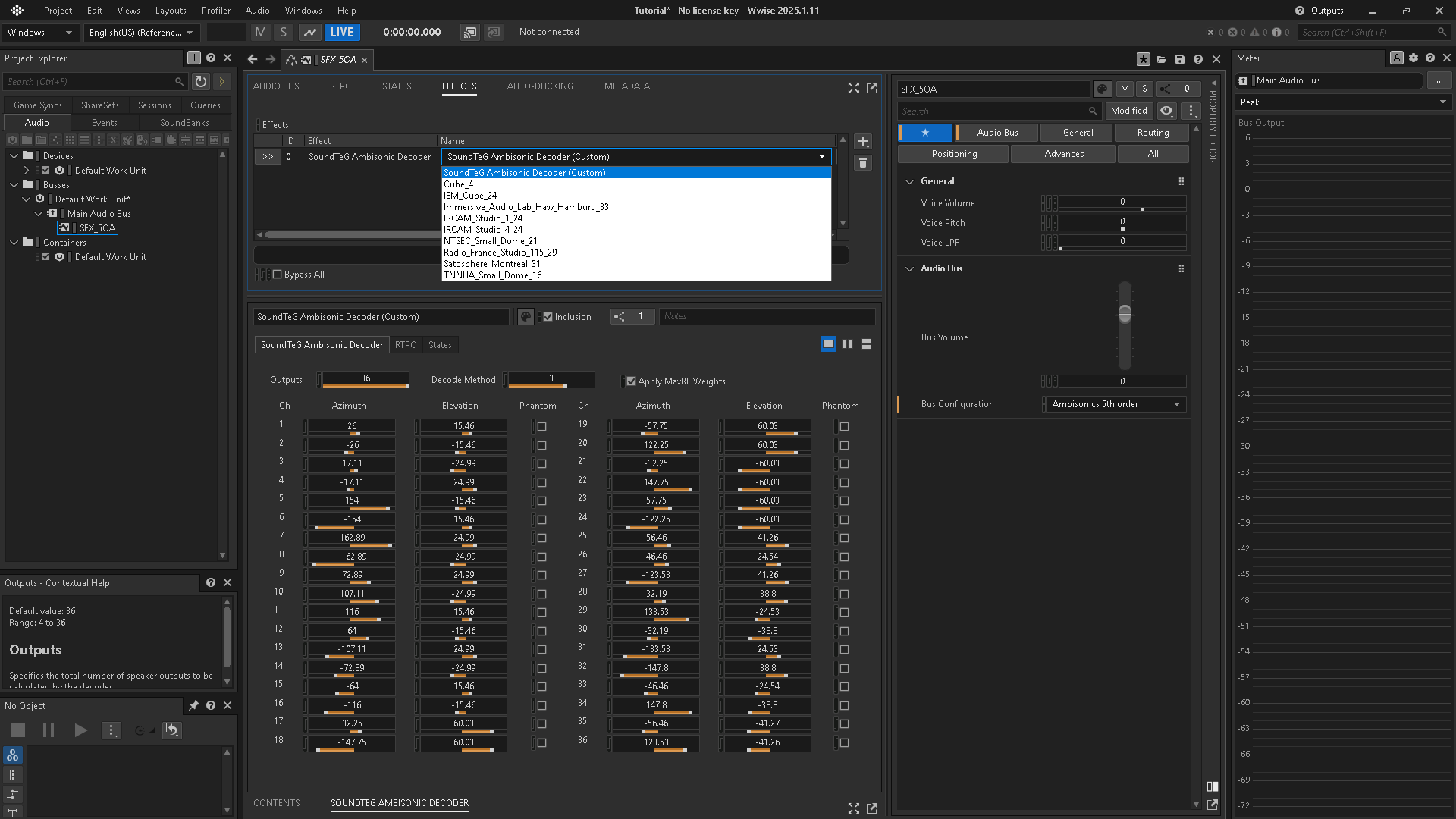
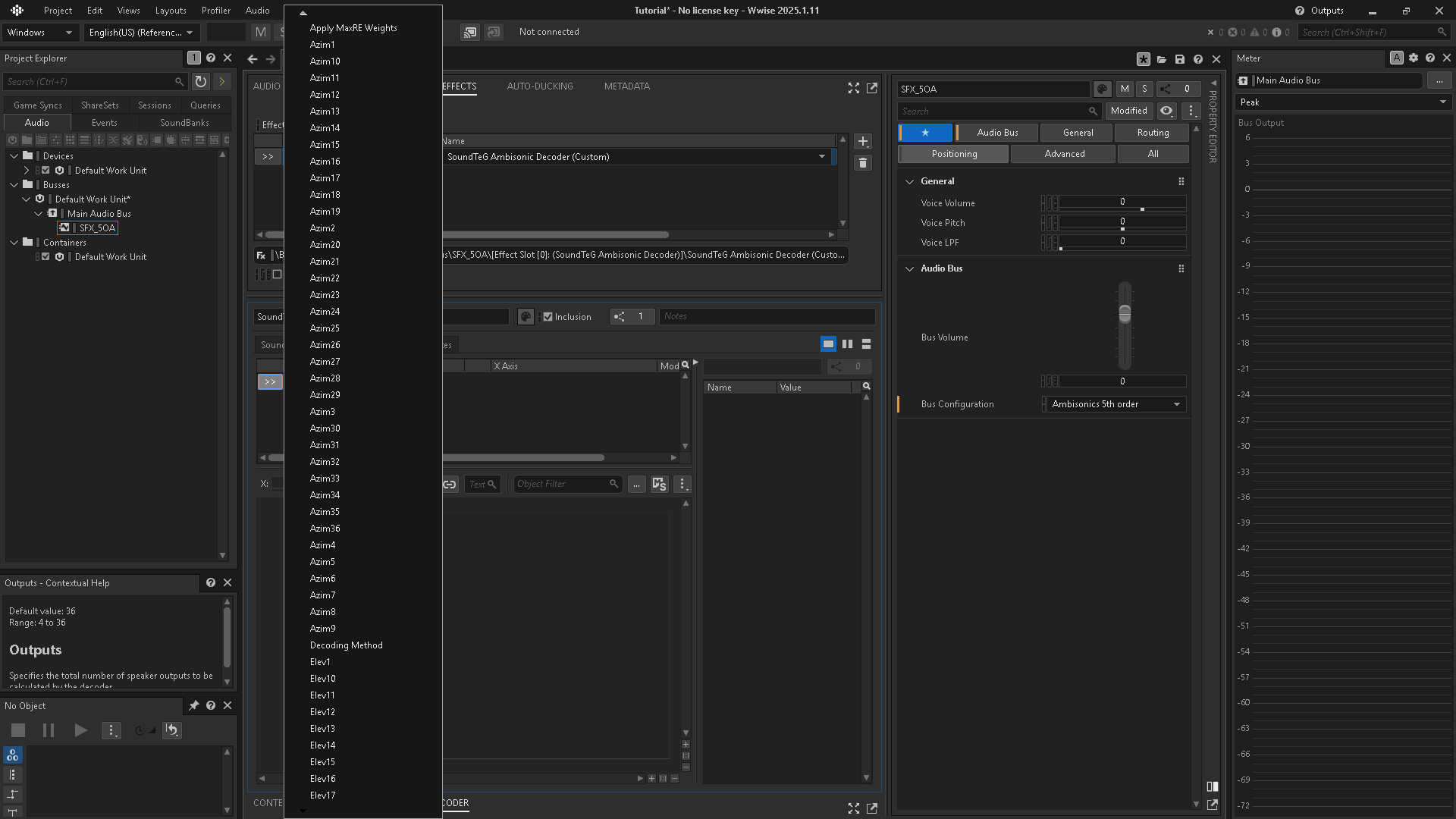
Choose a preset from the preset menu, or configure the layout using Outputs and each speaker’s Azimuth, Elevation, and Phantom controls. The property reference below explains these settings.
6. Create and position a test sound
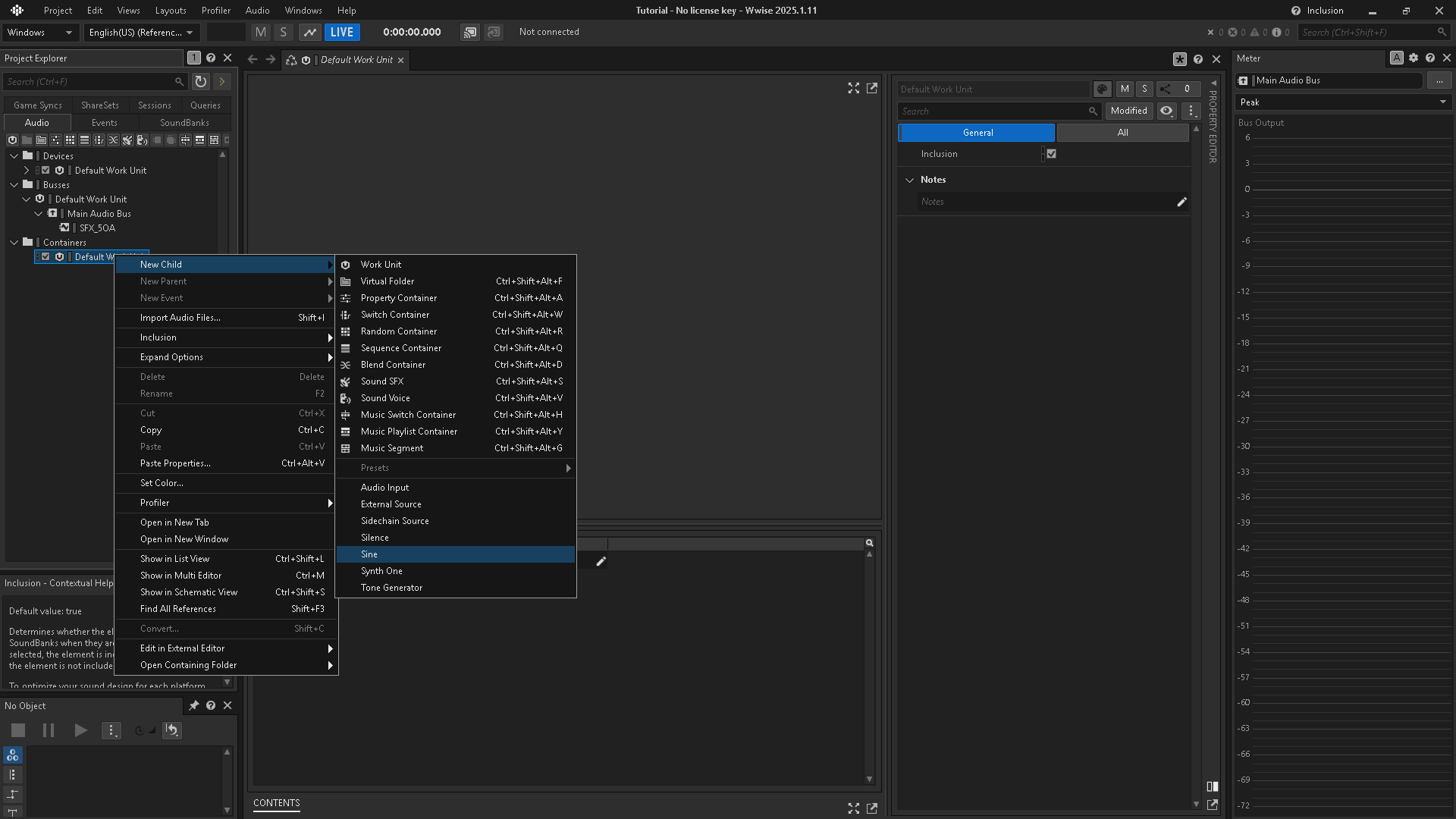
Create a Sine source under a Contents Work Unit for the playback test.
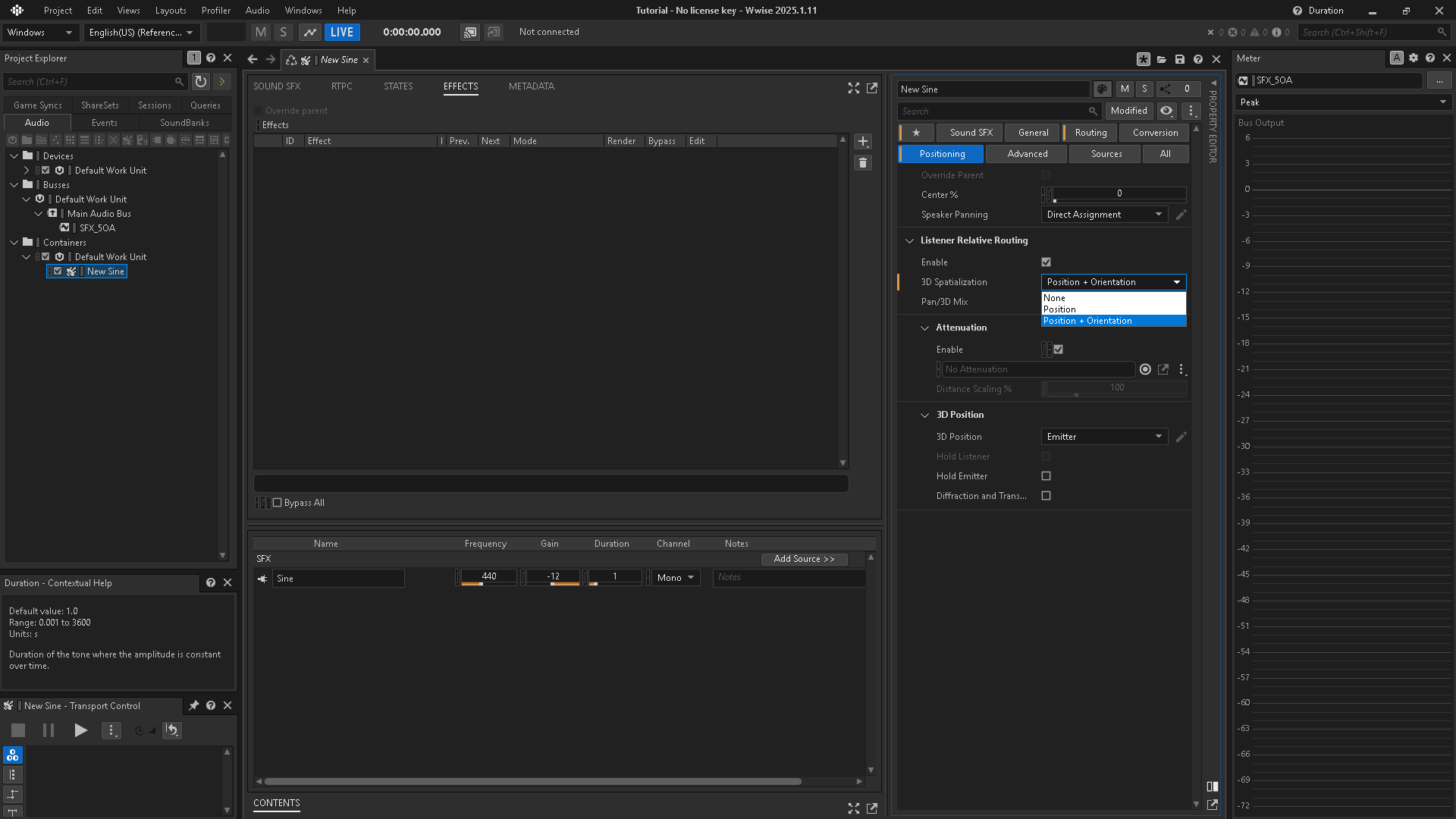
To position the sound relative to the listener in a game, open Positioning, enable Listener Relative Routing, and set 3D Spatialization to Position + Orientation. The example uses Emitter for 3D Position.
7. Route the sound to the ambisonic bus
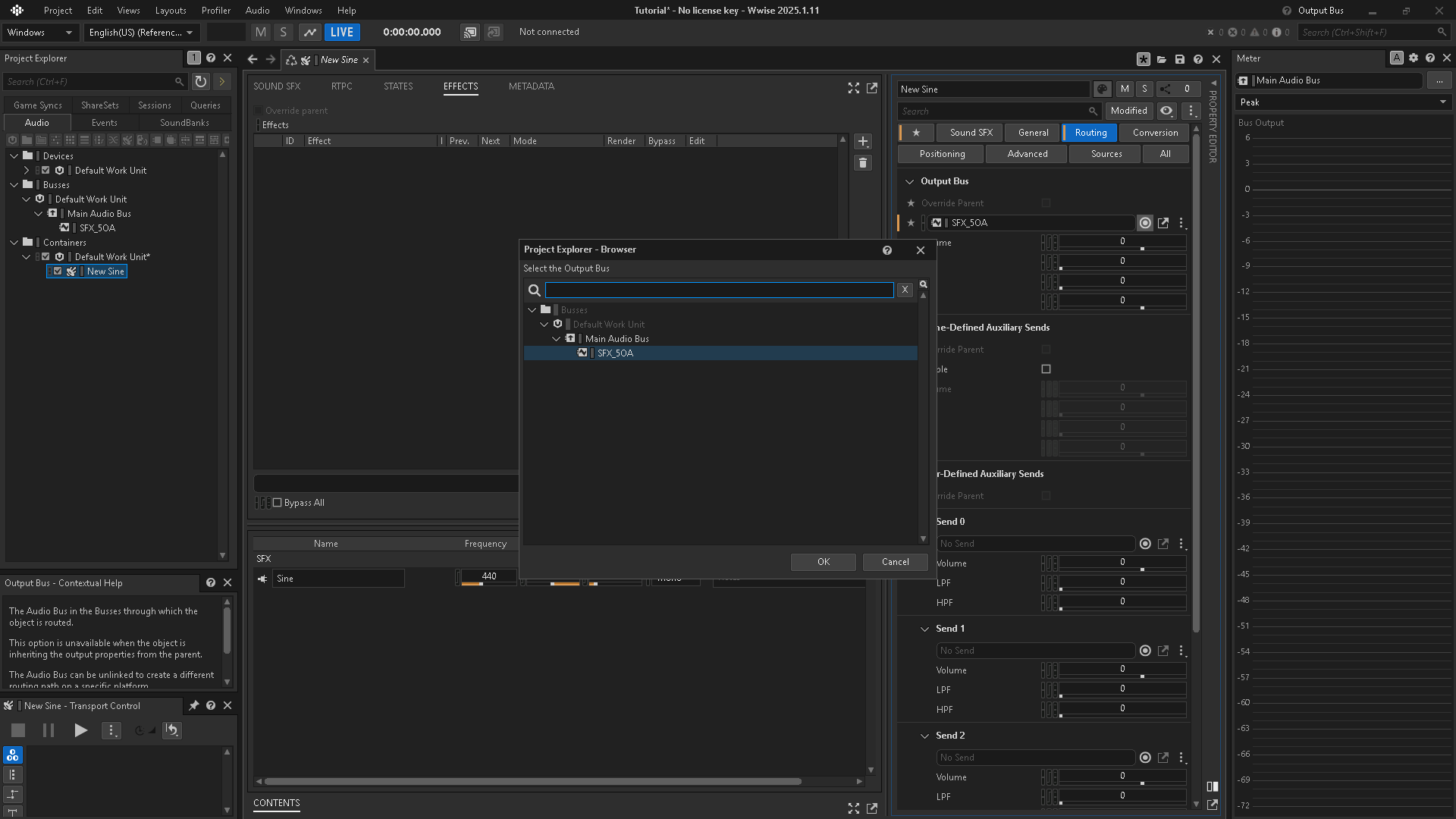
On the sound’s Routing tab, set Output Bus to the ambisonic bus created earlier.
8. Monitor the decoded output
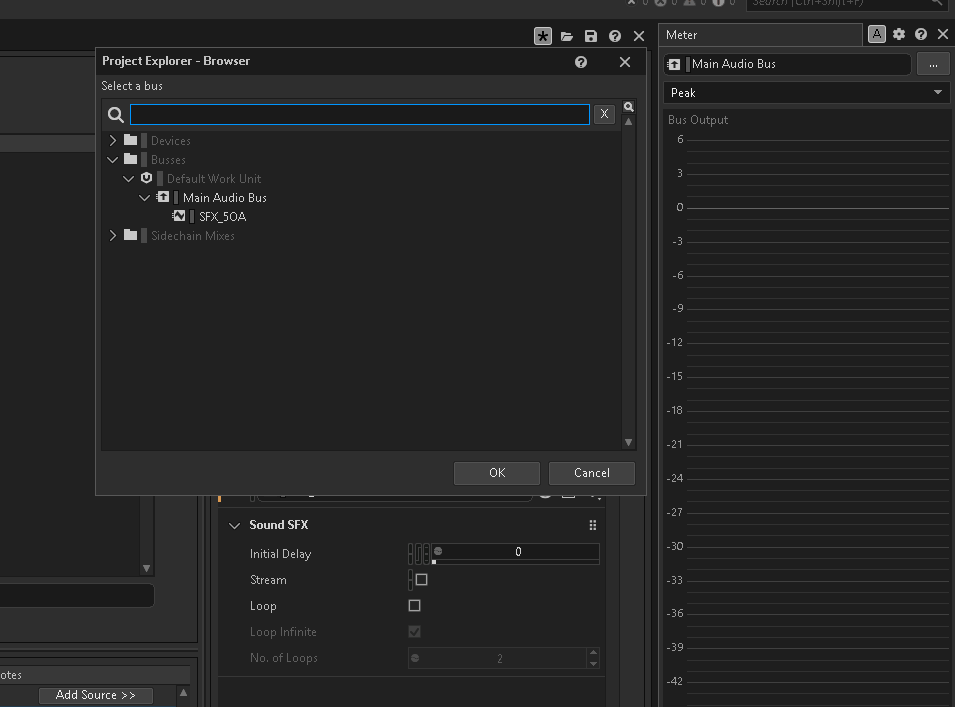
Select the ambisonic bus in the Meter view.
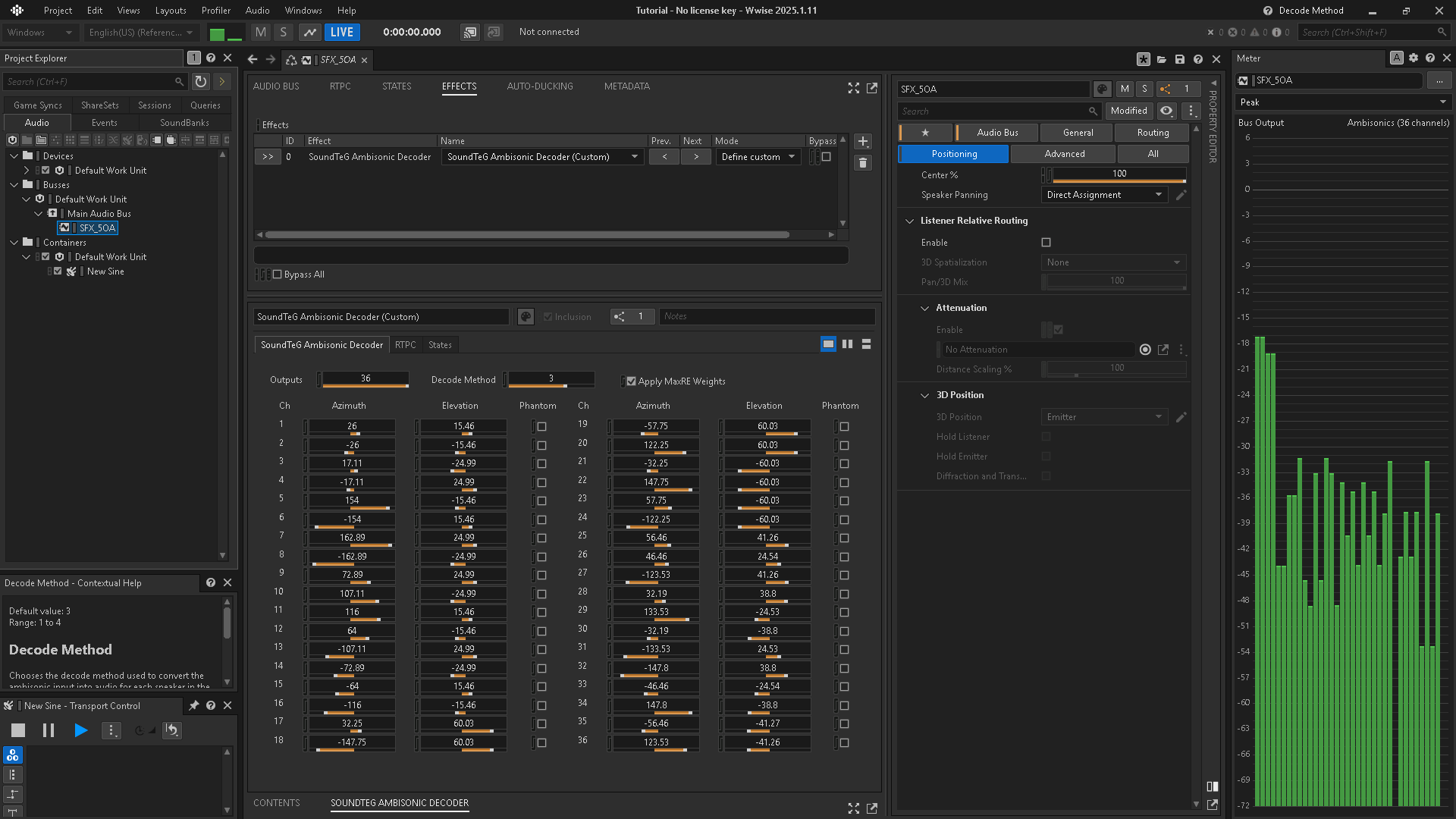
Play the test sound and inspect the meters while checking the configured loudspeaker layout.
9. Configure multichannel hardware output
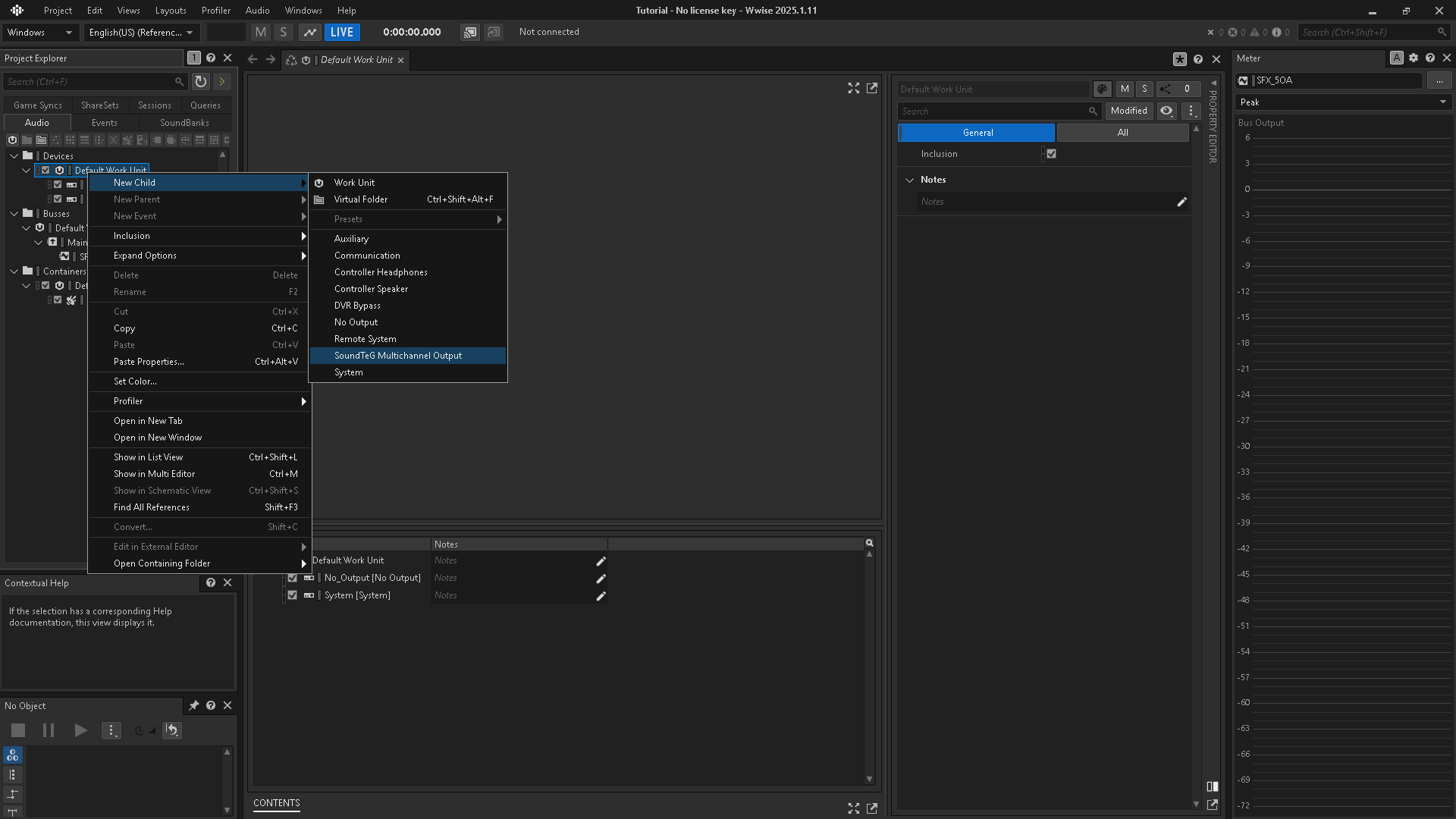
If you need multichannel hardware output, create a SoundTeG Multichannel Output Audio Device. Follow the SoundTeG Multichannel Output guide to assign it to Main Audio Bus and select the hardware.
Plug-in properties
| Property | Description |
|---|---|
| Outputs | The total number of speaker outputs calculated by the decoder. Range: 2–36 outputs. Older tutorial screenshots may show the previous minimum of 4. |
| Decode Method | The method used to convert the ambisonic input into audio for the selected loudspeaker layout. See the method table below. |
| Apply MaxRE Weights | Applies energy-vector (max-rE) weighting to the decoding matrix. This is used to improve directional imaging and reduce coloration when the listener is outside the exact sweet spot. |
Decode Method
| Value | Method |
|---|---|
| 1 — SAD | Sampling Ambisonic Decoder |
| 2 — MMD | Mode Matching Decoder |
| 3 — EPAD | Energy-Preserving Ambisonic Decoder |
| 4 — ALLRAD | All-Round Ambisonic Decoder |
CPU usage: ALLRAD may use more CPU, especially with higher ambisonic orders or more output speakers.
Speaker position and phantom channels
The following properties are available for each of the 36 speaker channels.
| Property | Description |
|---|---|
| Azimuth | Defines the horizontal angle of the speaker. |
| Elevation | Defines the vertical angle of the speaker. |
| Phantom | Marks the channel as an imaginary loudspeaker. ALLRAD uses its direction to help maintain a stable sound field where real speakers are missing, such as below the listener. |
A phantom channel outputs no sound in any decoding method. Enable Phantom for a direction with no real speaker.
RTPC setup
Control properties with Game Parameters
Decoder properties can be controlled through RTPCs. Open the decoder’s RTPC tab to bind a property to a Game Parameter.
Optional: create the RTPCs with the helper script
The create_decoder_rtpcs.py helper creates or updates 111 Game Parameters and their bindings for a selected decoder instance. It requires Python 3.9 or later and uses Wwise Authoring’s WAAPI connection. No additional Python packages are required.
create_decoder_rtpcs.py
- Keep the Wwise project open and enable WAAPI in Wwise User Preferences. The helper uses the local HTTP port 8090 by default.
- Select the bus containing the decoder instance you want to configure. If several instances exist, work on one instance at a time.
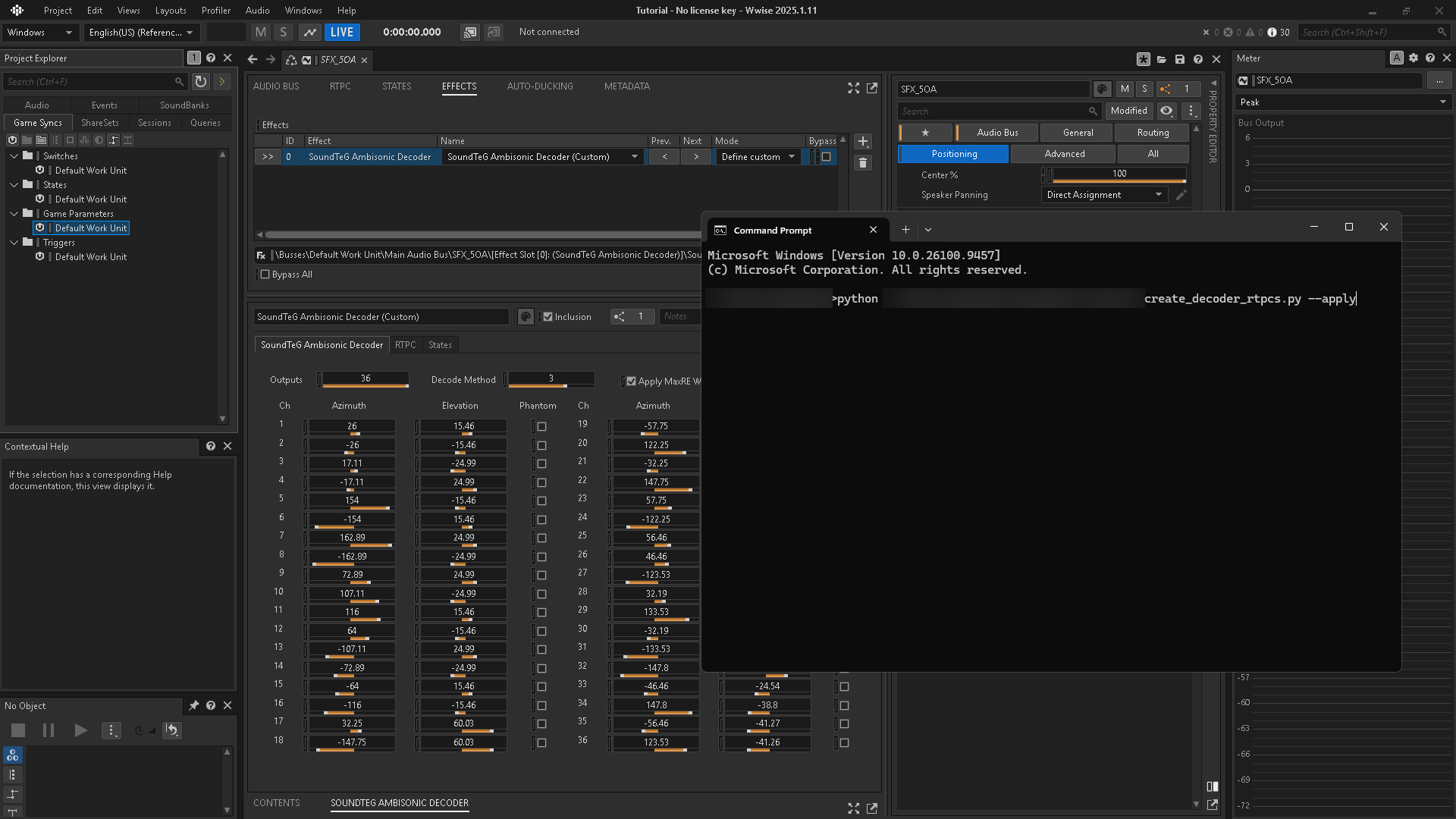
- Open a command prompt. Replace the example path below with the location where you saved the script.
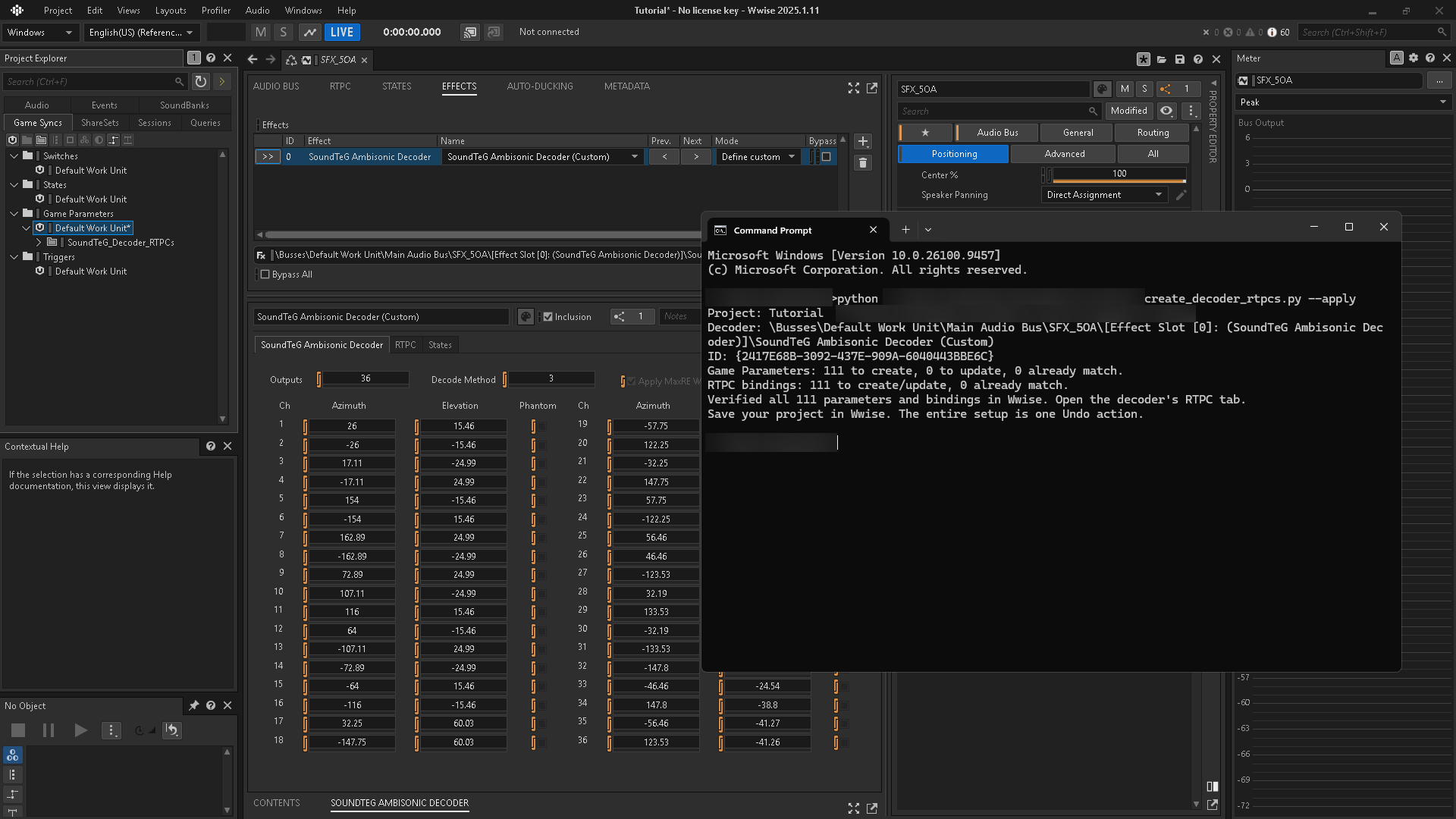
- Run the command, check the reported result, then open the decoder’s RTPC tab and save the Wwise project.
python "path/to/create_decoder_rtpcs.py" --applyYou can type python , drag the script file into the command prompt to insert its path, and append --apply. Running the script without --apply previews the changes.
Troubleshooting
The sound becomes silent
If the sound becomes silent, first check the Audio Bus containing SoundTeG Ambisonic Decoder: Bus Configuration must be set to Ambisonics. The decoder works only on an ambisonic bus. If an individual speaker channel is silent, check its Phantom setting; phantom channels are intentionally silent. Also check the sound’s Output Bus, the decoder layout, and the hardware output routing.
The RTPC helper cannot connect
Keep Wwise open, enable WAAPI, and check the HTTP port in User Preferences. If the helper cannot identify a decoder instance, select its bus in Wwise and try again.
For further help, contact Support with your Wwise version, plug-in version, operating system, audio device, speaker layout, and a description of the result.
Demo: My World
My World demonstrates the SoundTeG plug-ins in Unity and Wwise. Visit the Demo page for its setup guide, project repositories, and Windows, macOS, and Android builds.

