
SoundTeG Multichannel Output
SoundTeG Multichannel Output is an output plug-in for Wwise that routes audio to a multichannel audio device. It currently supports Windows and macOS only and provides the same plug-in functionality on both platforms.
On this page
Setup guide
Currently supported Wwise version: 2025.1.11.9262. The setup workflow is the same on Windows and macOS. These screenshots were captured on Windows; the ASIO and WASAPI notes below apply to Windows. Click any screenshot to open a larger view.
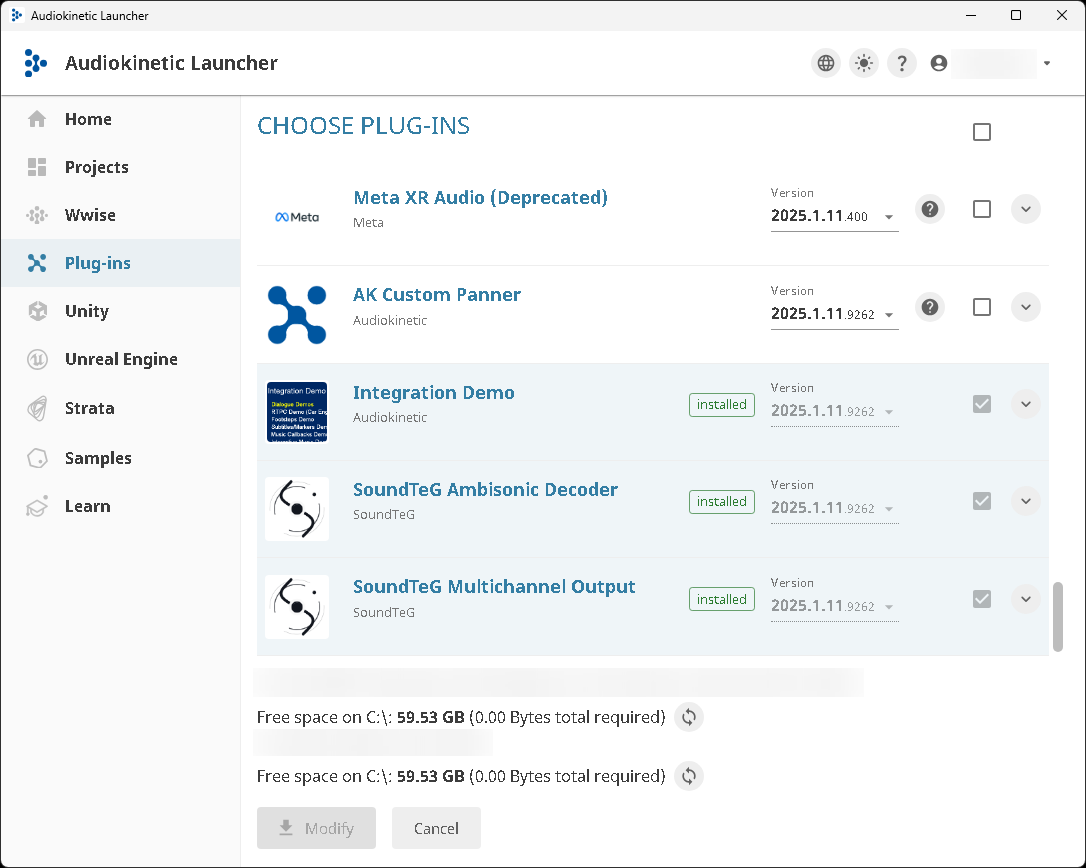
1. Install the plug-in
In the Wwise Launcher, install SoundTeG Multichannel Output for the Wwise version used by your project.
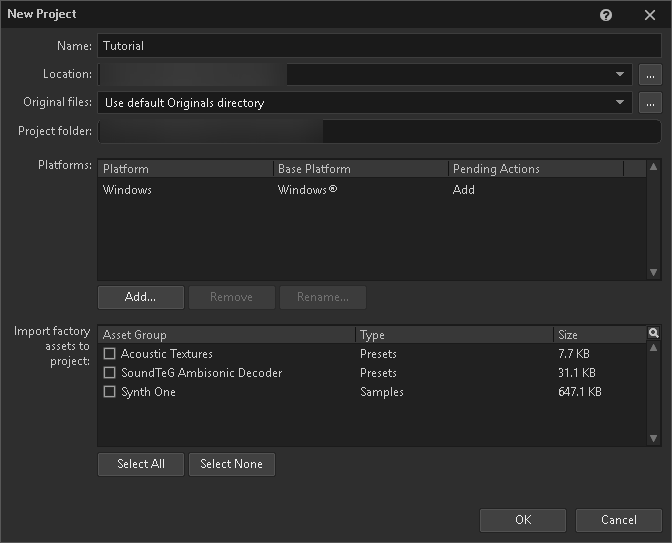
2. Create a project
Create a new Wwise project for this walkthrough, or use a project in which you want to configure multichannel output.
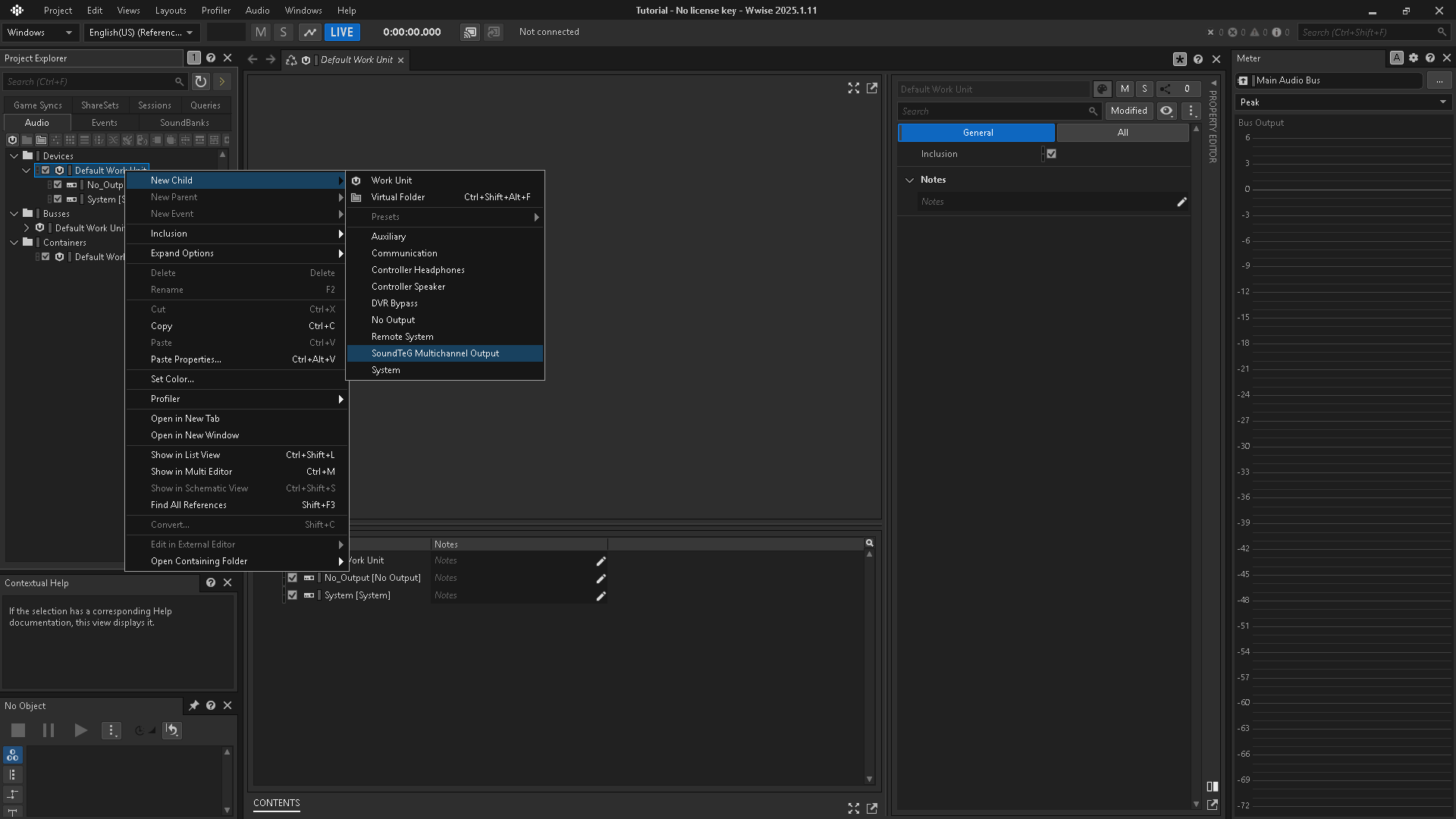
3. Create the Audio Device
Under Devices → Default Work Unit, choose New Child → SoundTeG Multichannel Output.
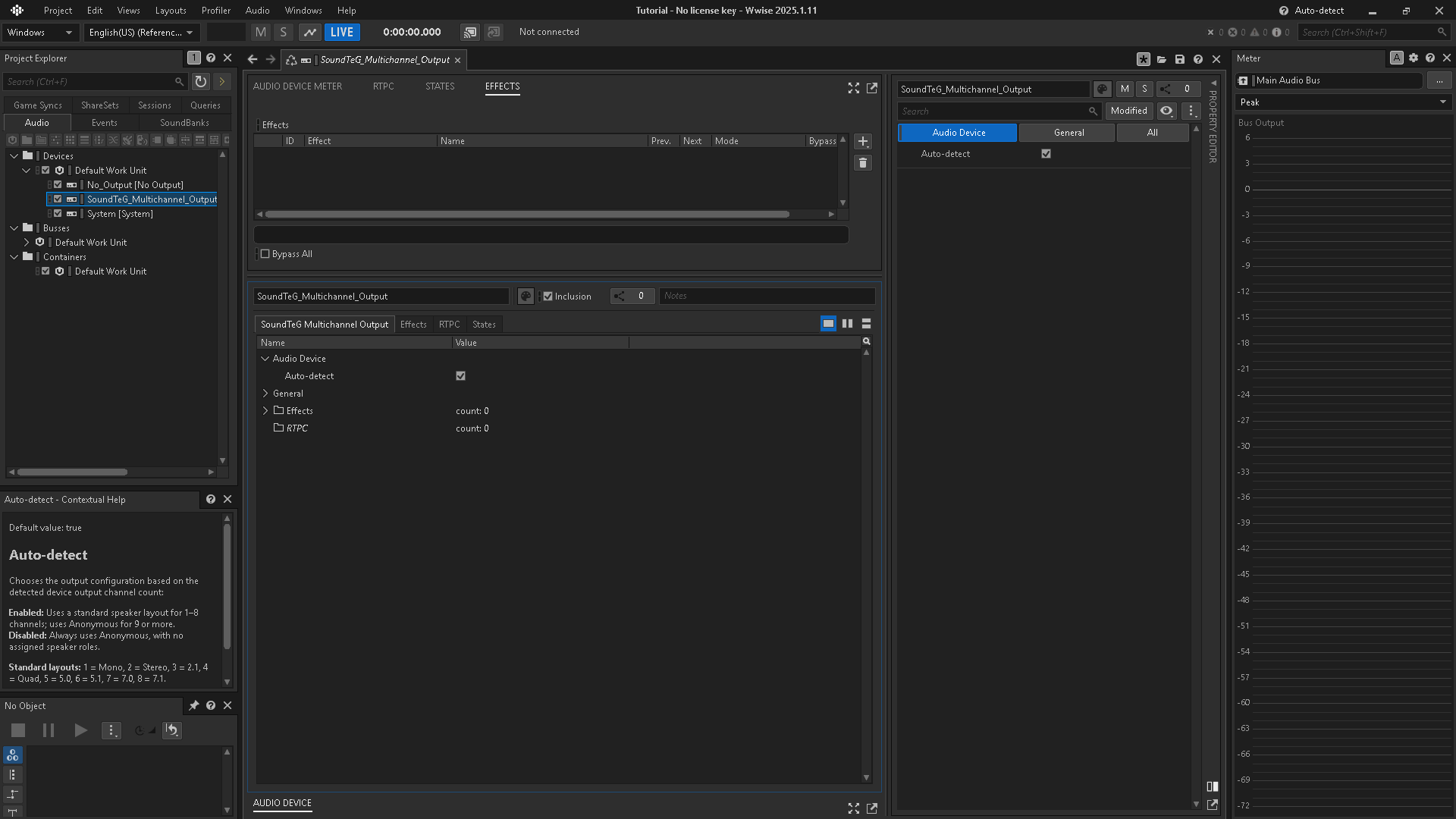
Open the Audio Device to view the Auto-detect setting. Its description is also available in the Contextual Help panel.
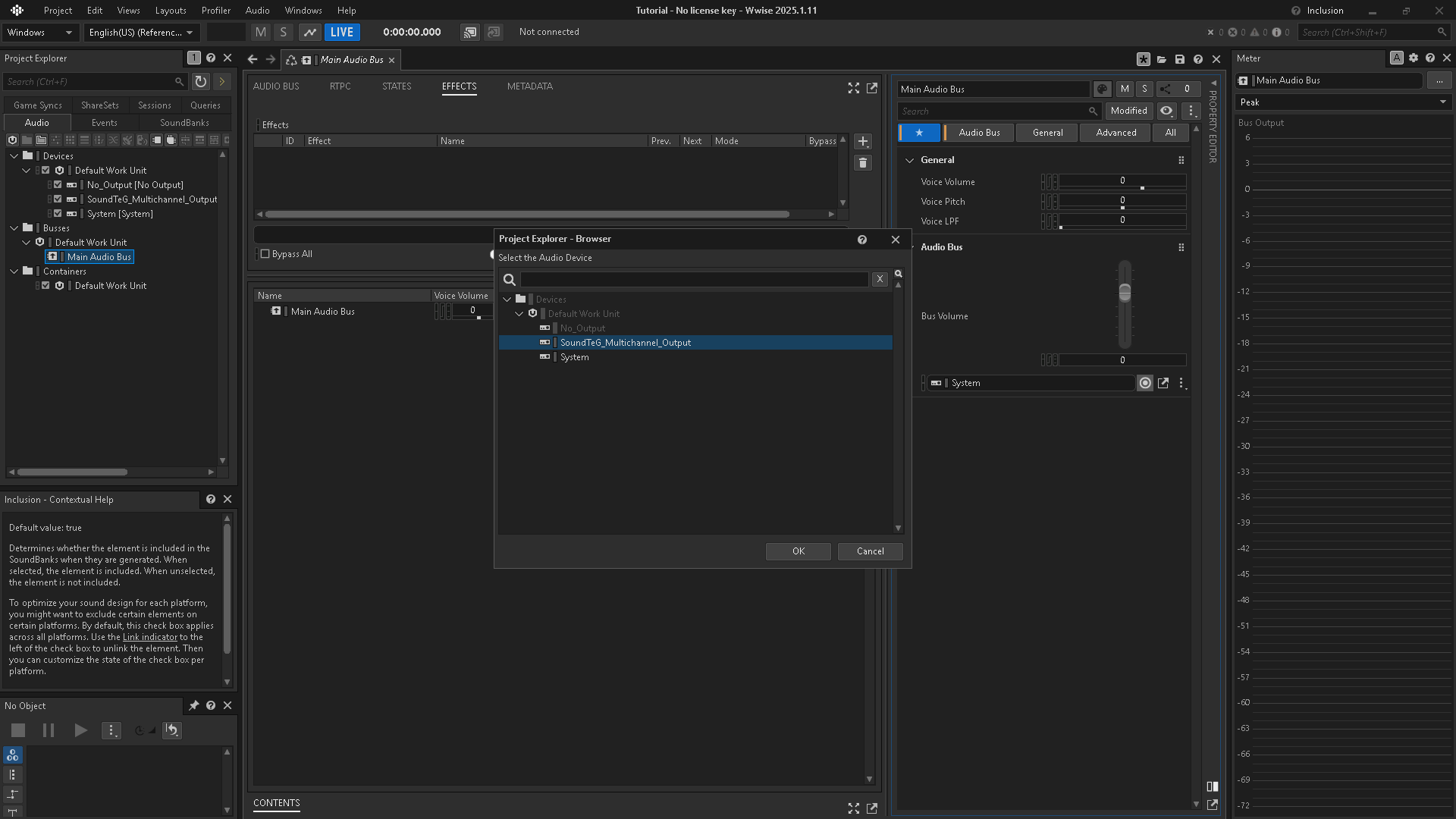
4. Assign the device to Main Audio Bus
Select Main Audio Bus and set its Audio Device to the SoundTeG Multichannel Output device created in the previous step.
Before generating SoundBanks for other platforms
SoundTeG Multichannel Output supports Windows and macOS only. When generating SoundBanks for an unsupported target platform, such as Android, make sure that Main Audio Bus is not assigned to the SoundTeG Multichannel Output Audio Device. Select an Audio Device supported by the target platform before generating its SoundBanks.
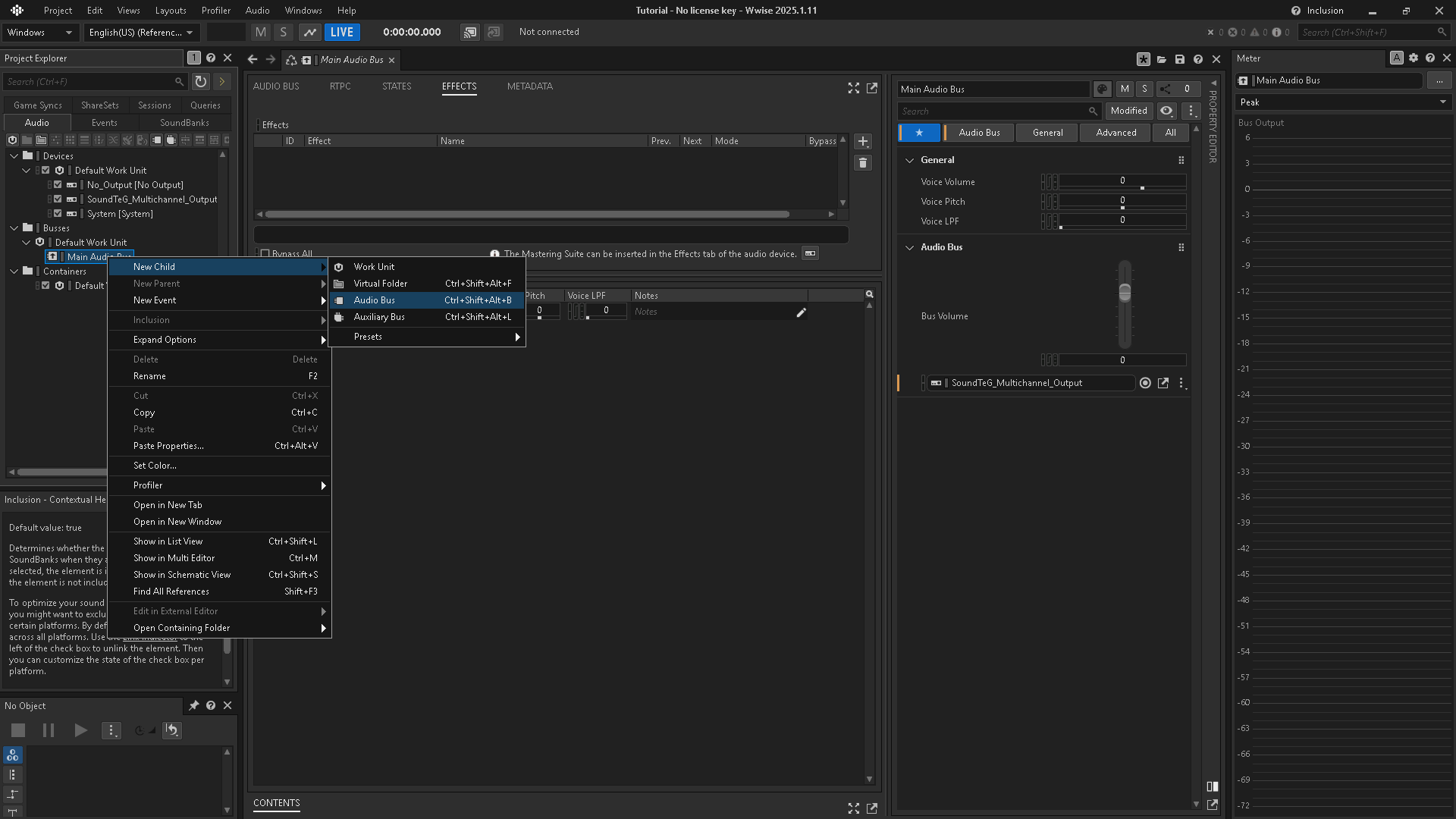
5. Create and configure a test bus
Create a child Audio Bus under Main Audio Bus.
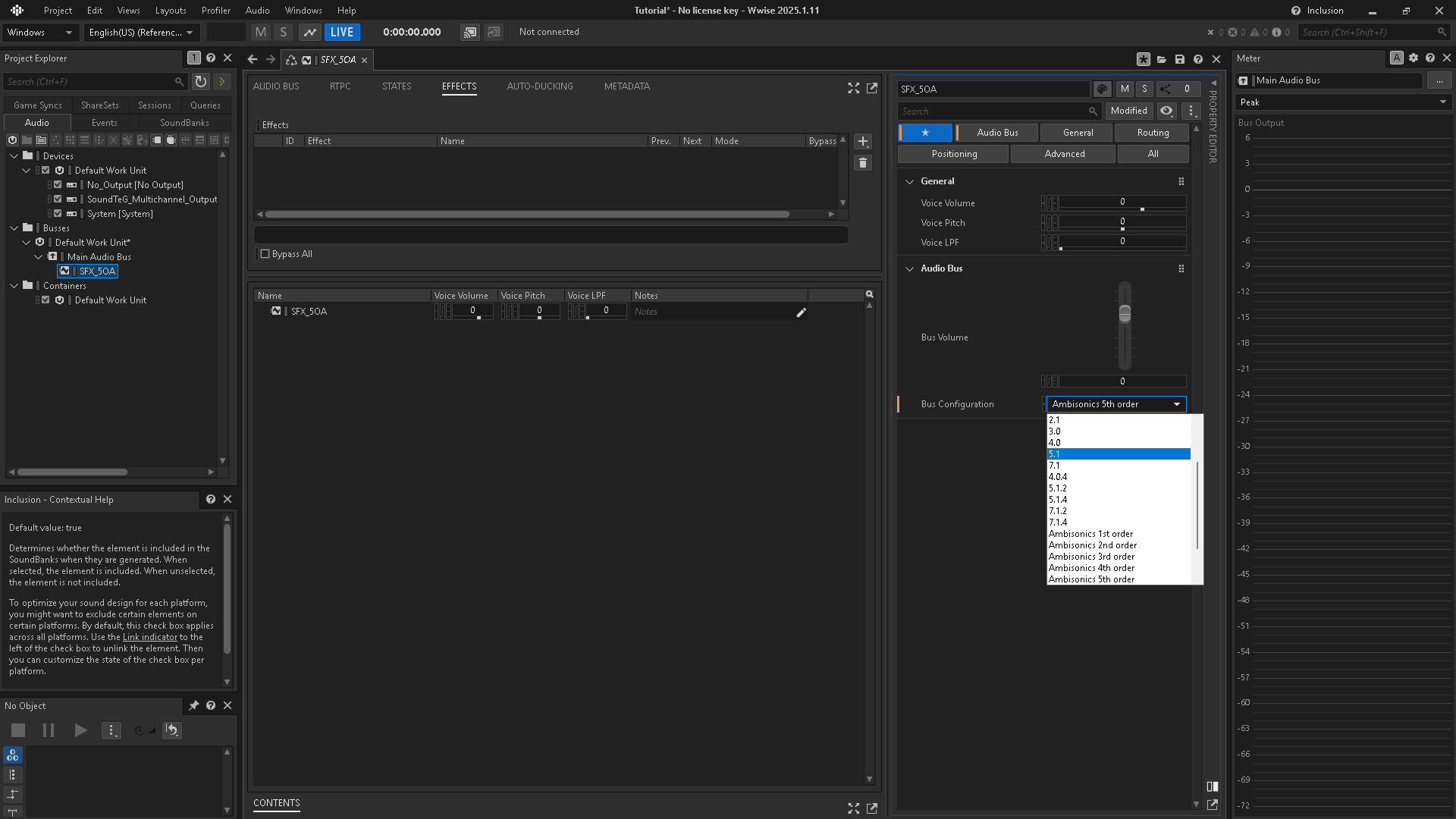
Choose the Bus Configuration for your signal path. The screenshot uses an ambisonic bus. For an ambisonic-to-loudspeaker decoding setup, follow the SoundTeG Ambisonic Decoder guide.
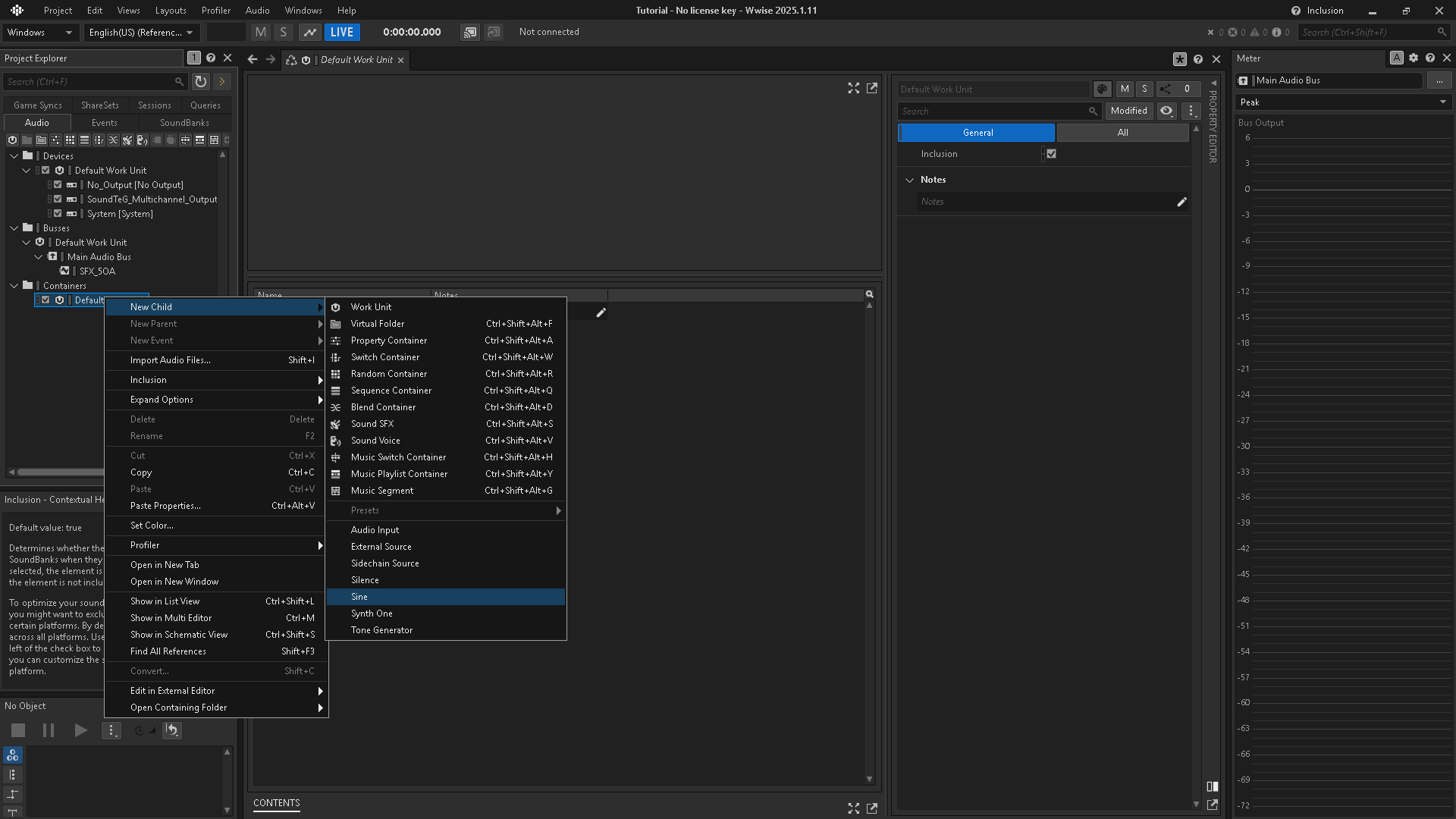
6. Create and position a test sound
Create a Sine source under a Contents Work Unit.
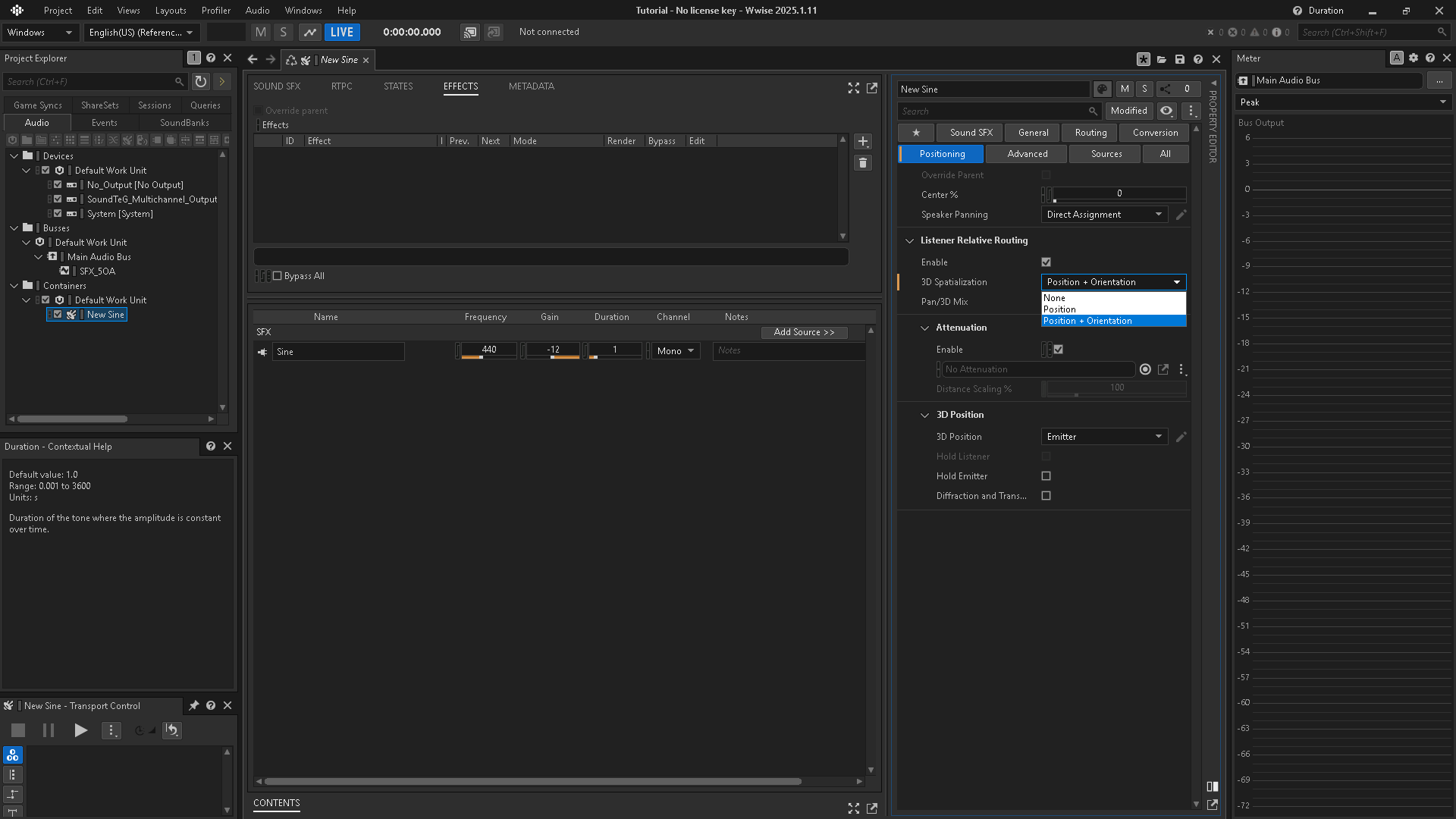
For listener-relative positioning in a game, open Positioning, enable Listener Relative Routing, and set 3D Spatialization to Position + Orientation.
7. Route the test sound
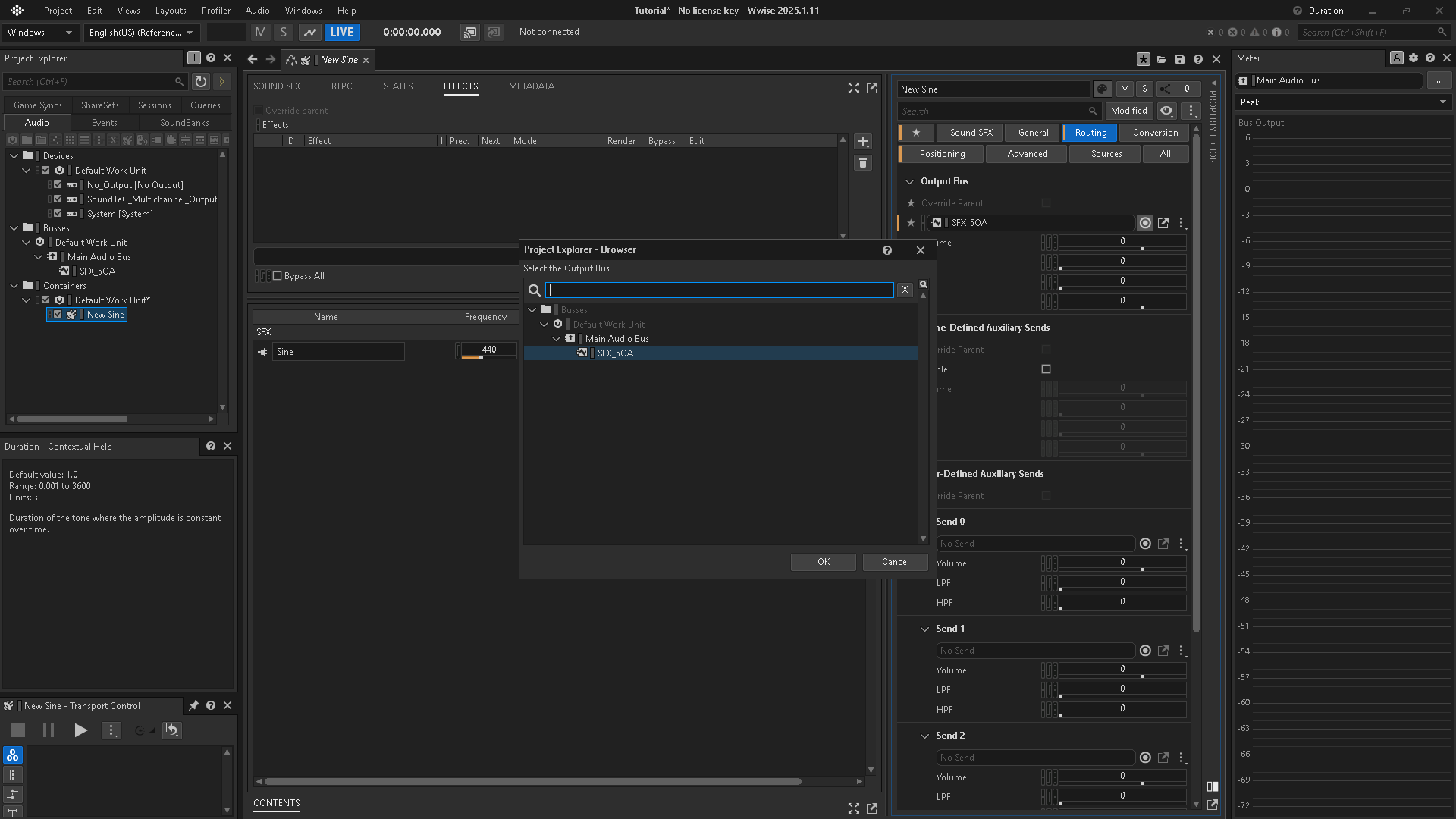
On the sound’s Routing tab, set Output Bus to the test bus.
8. Check the hardware output
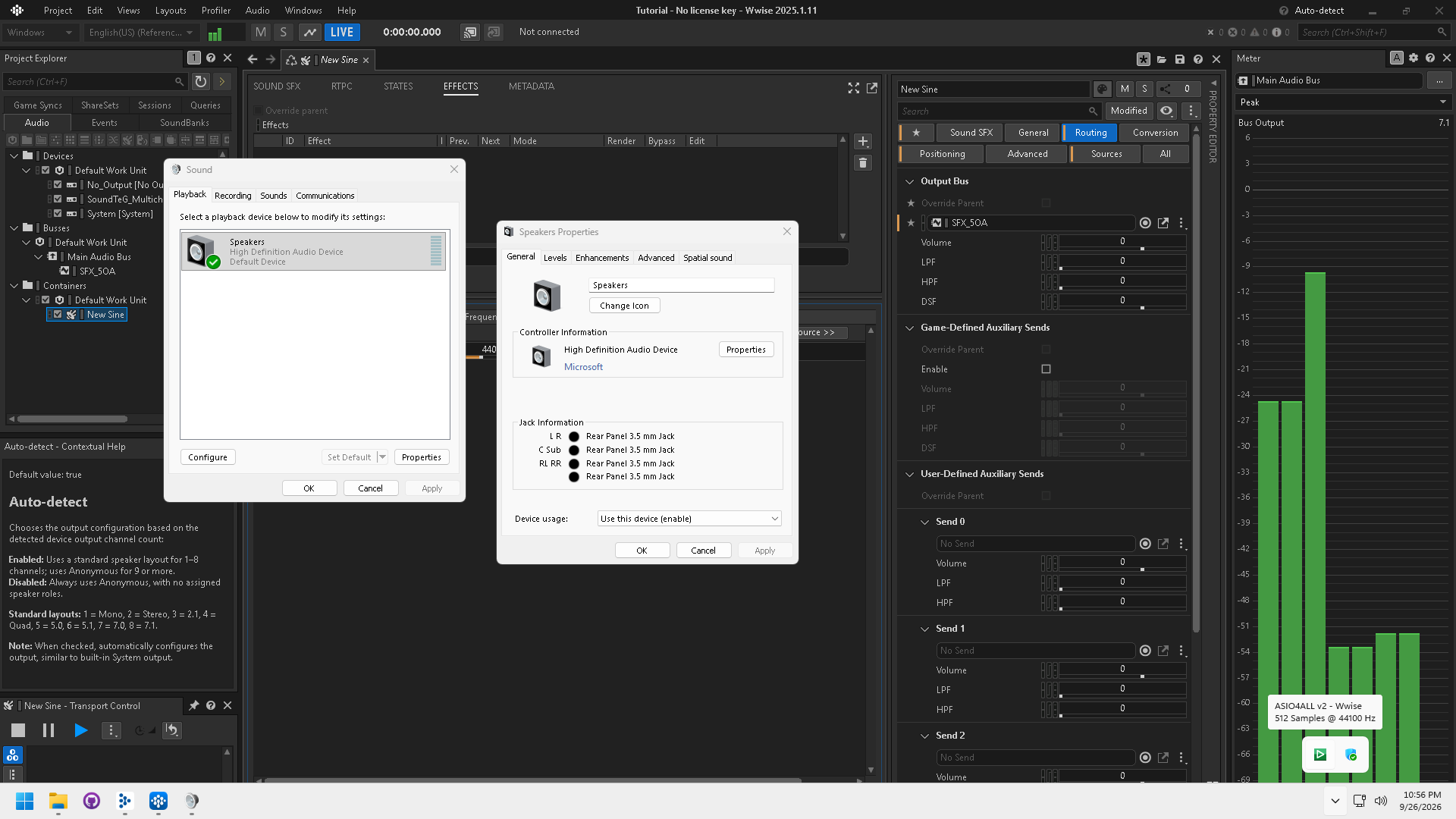
Play the test sound. Check the selected physical audio device and its available output channels, then inspect the Main Audio Bus meters. With Auto-detect enabled, the output configuration is chosen from the detected device’s output channel count.
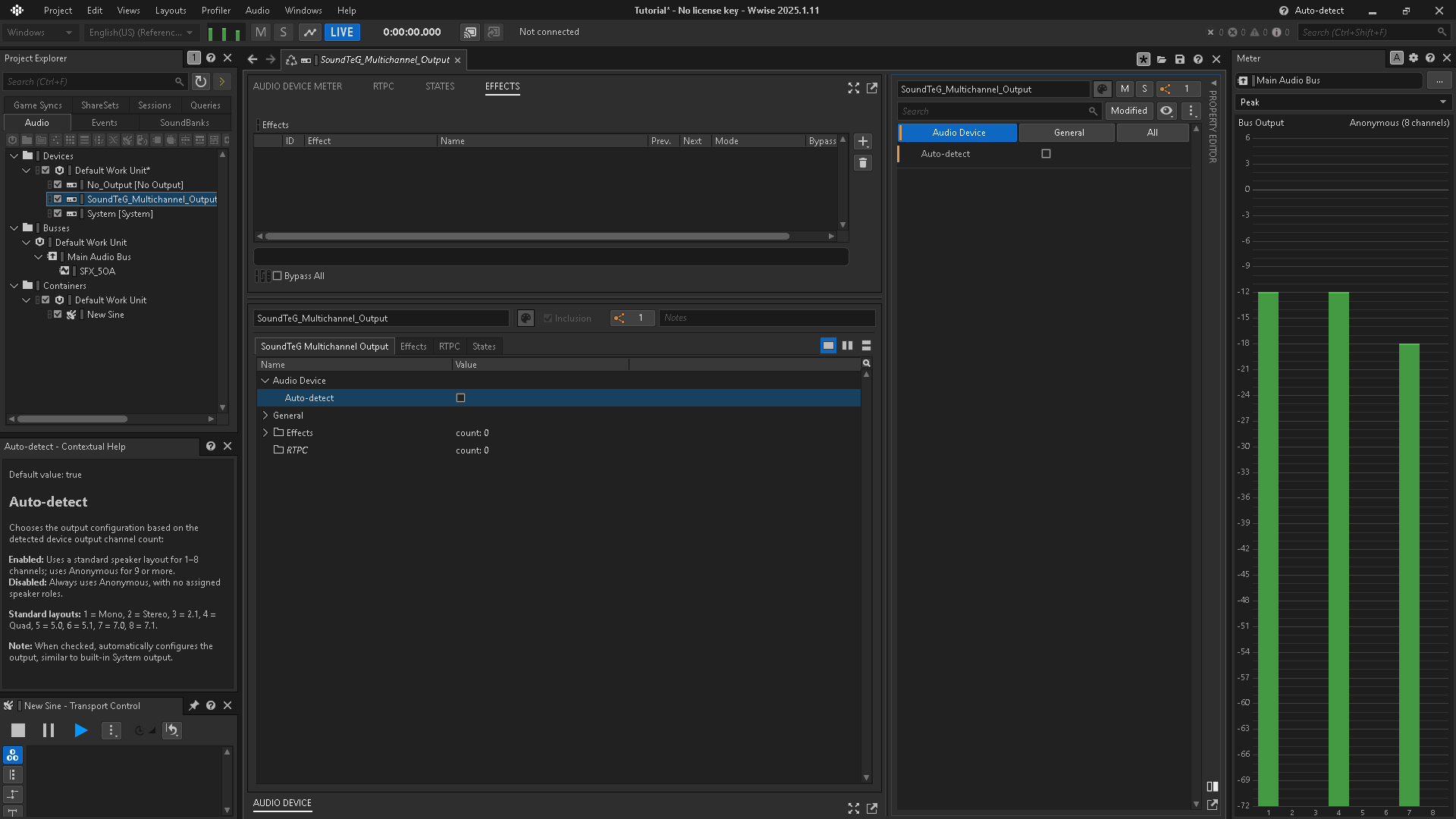
With Auto-detect unchecked, the output uses an Anonymous configuration. In the example below, the meter reports eight Anonymous channels.
Plug-in properties
Auto-detect
Auto-detect chooses the output configuration based on the detected audio device’s output channel count.
| Setting | Output configuration |
|---|---|
| Enabled | Uses a standard speaker layout for 1–8 channels and Anonymous for 9 or more channels. |
| Disabled | Always uses Anonymous, with no assigned speaker roles. |
Standard layouts with Auto-detect enabled
| Device output channels | Layout |
|---|---|
| 1 | Mono |
| 2 | Stereo |
| 3 | 2.1 |
| 4 | Quad |
| 5 | 5.0 |
| 6 | 5.1 |
| 7 | 7.0 |
| 8 | 7.1 |
| 9 or more | Anonymous |
When enabled, Auto-detect configures the output in a similar way to Wwise’s built-in System output.
Authoring Audio Preferences and ASIO
In Wwise Authoring, Authoring Audio Preferences can override the device assigned to Main Audio Bus. Select the SoundTeG Multichannel Output entry paired with the hardware you want to use. The example selects ASIO4ALL v2.
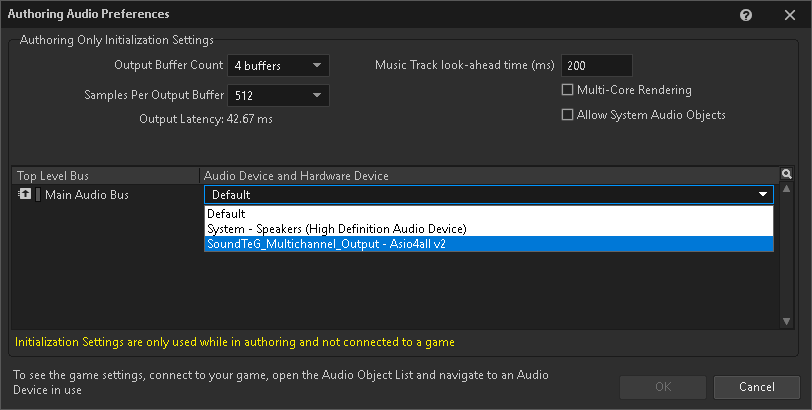
Windows: SoundTeG Multichannel Output falls back to WASAPI when no ASIO device is installed. An ASIO device may not appear in the Windows taskbar’s playback-device list; select it through Wwise’s Authoring Audio Preferences. Always verify both the physical audio device and the SoundTeG Multichannel Output Audio Device plug-in selected in Wwise. Authoring Audio Preferences apply while authoring and not connected to a game.
Troubleshooting
Playback uses the wrong device or is silent
- Confirm that Main Audio Bus is assigned to your SoundTeG Multichannel Output Audio Device.
- Check Authoring Audio Preferences for a hardware override.
- Confirm that the test sound routes through the intended bus.
- Check the physical device’s output channels and the Auto-detect setting, then verify the speaker outputs with a test signal.
An ASIO device is absent from the Windows playback list
Use Authoring Audio Preferences in Wwise to select the plug-in and ASIO hardware.
For further help, contact Support with your Wwise version, plug-in version, operating system, audio device, speaker layout, and a description of the result.
Demo: My World
My World demonstrates the SoundTeG plug-ins in Unity and Wwise. Visit the Demo page for its setup guide, project repositories, and Windows, macOS, and Android builds.

